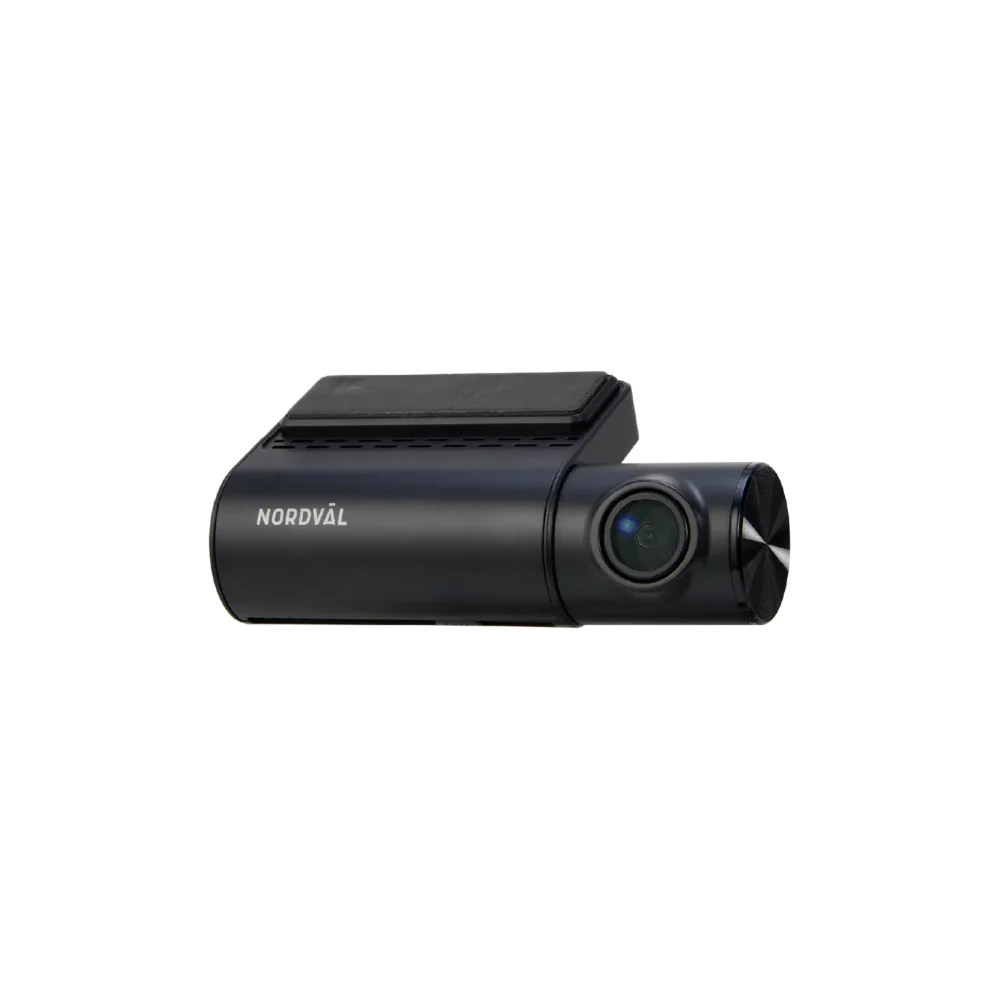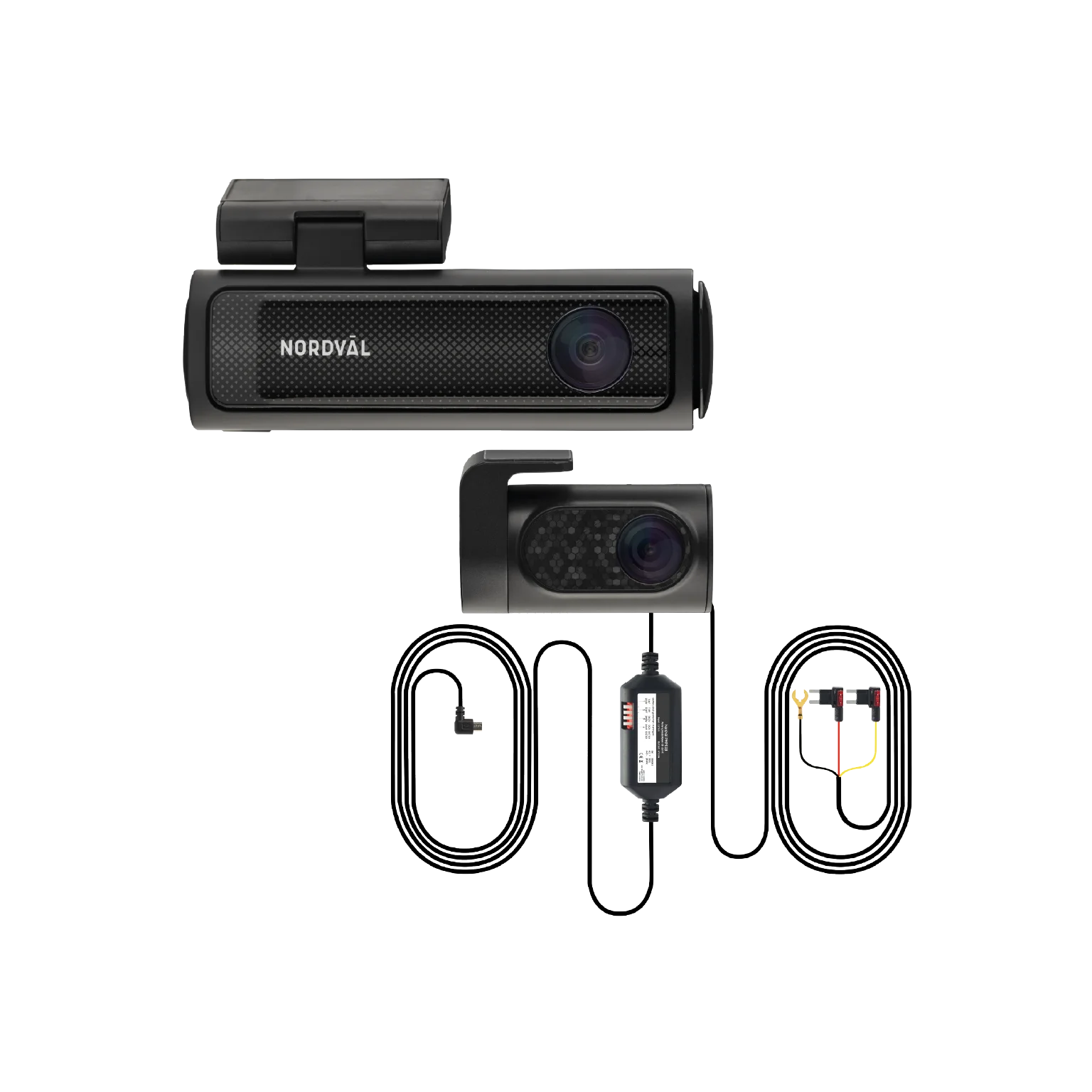
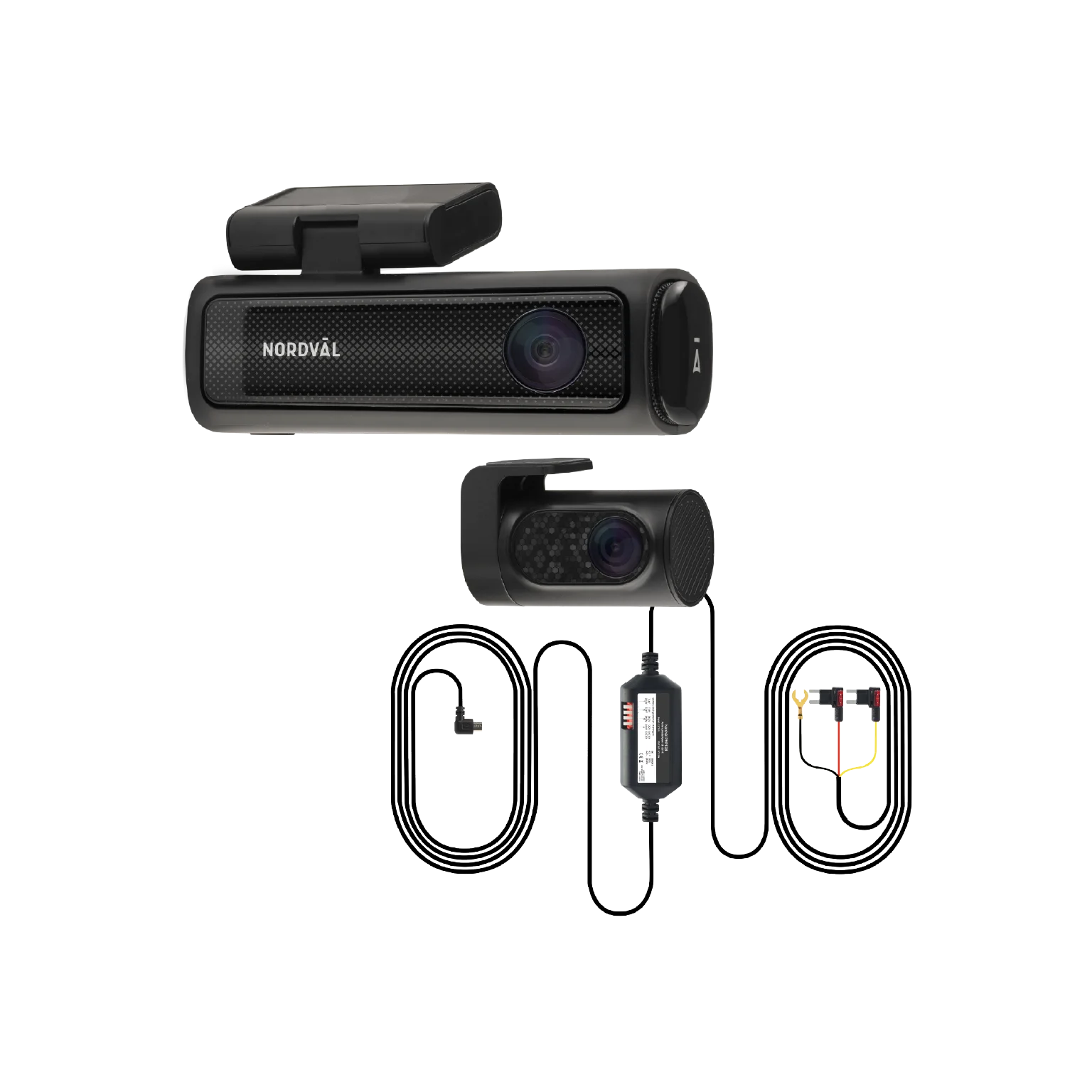

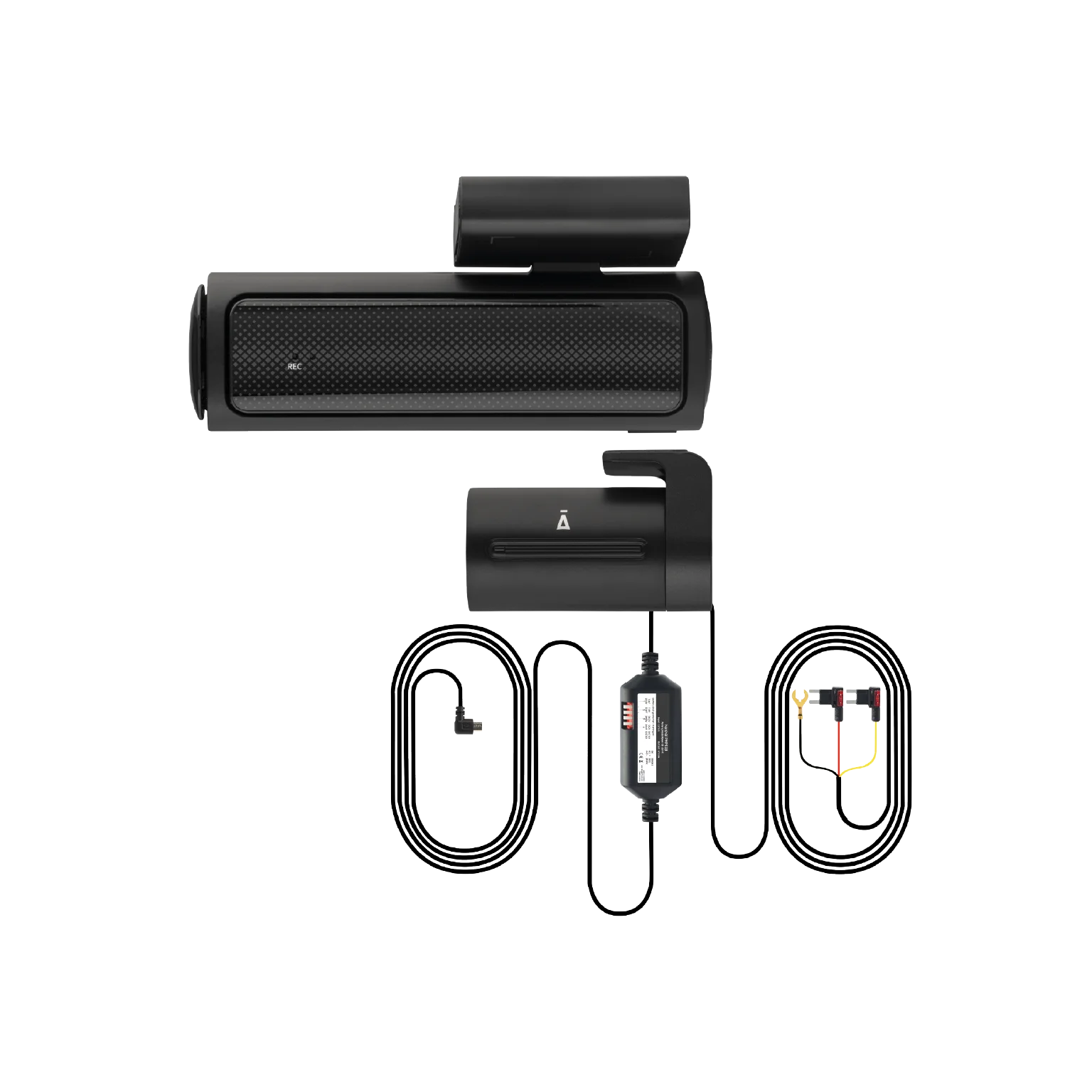
DC202-2CH Dashcam + PMPC03 Parking Mode Cable Set Bundle
Price range: 299 through 359 ,-
The DC202-2CH Dashcam + PMPC03 Parking Mode Cable Set bundle is the perfect bundle for anyone who wants their dashcam to continue recording while parked.
This is a stylish and compact dual dashcam equipped with all the essential features, including: front and rear recording, Sony STARVIS image sensors, 5GHz WiFi, built-in GPS, advanced parking mode options, time-lapse recording, and much more!
 4K UHD @ 30FPS
WiFi 5GHz + Bluetooth BLE 4.2
Built-in GPS + Impact sensor
With voice control and guidance
Advanced parking mode options
Time-lapse opnames
- Description
—
Belangrijke kenmerken
—
Belangrijke kenmerken

Voor- en achter camera

4K UHD @ 30FPS

WiFi 5GHz

Ingebouwde GPS

Geavanceerde parkeermodus

Uitstekend dag-/nachtzicht

Impact detectie

Time-lapse opnames
—
Nordväl DC202-2CH
The DC202-2CH is a stylish and compact dual dashcam with all the necessary features on board, including: front and rear recording, WiFi (5GHz), built-in GPS, extensive parking mode options, time-lapse recording, and much more.
Thanks to the 4K front camera (3840p), the 2K rear camera (2560p), and the Sony STARVIS image sensors, you can now record all your journeys day and night in stunning quality.


—
Nordväl DC202-2CH
The DC202-2CH is a stylish and compact dual dashcam with all the necessary features on board, including: front and rear recording, WiFi (5GHz), built-in GPS, extensive parking mode options, time-lapse recording, and much more.
Thanks to the 4K front camera (3840p), the 2K rear camera (2560p), and the Sony STARVIS image sensors, you can now record all your journeys day and night in stunning quality.

—
PMPC03 Parkeermodus power kit USB-C
Thanks to the Nordväl PMPC03 USB-C power kit for the DC202-2CH, you can continue recording in parking mode without the risk of draining your vehicle’s battery. The desired cut-off voltage level can be easily adjusted.
In parking mode, you can choose from various recording options such as impact detection, motion detection, and time-lapse recording.
The kit can be easily connected to the vehicle’s fuse box. Then simply select the desired cut-off voltage. This power kit is suitable for both 12-volt and 24-volt systems.
Click here for the complete description of the PMPC03 Parking Mode USB-C power kit.
—
PMPC03 Parkeermodus power kit USB-C
Thanks to the Nordväl PMPC03 USB-C power kit for the DC202-2CH, you can continue recording in parking mode without the risk of draining your vehicle’s battery. The desired cut-off voltage level can be easily adjusted.
In parking mode, you can choose from various recording options such as impact detection, motion detection, and time-lapse recording.
The kit can be easily connected to the vehicle’s fuse box. Then simply select the desired cut-off voltage. This power kit is suitable for both 12-volt and 24-volt systems.
Click here for the complete description of the PMPC03 Parking Mode USB-C power kit.
—
Ontdek de Nordväl DC202-2CH
met zijn 4K 3840p resolutie
zeer scherpe beelden op. De
opnames zijn zowel in het
daglicht als in het donker van
uitstekende kwaliteit.
Je kan er ook voor kiezen om
de DC202-2CH alleen te
gebruiken met de voor camera.
Dan kan de dashcam video's
opnemen tot wel 5K (5160p)
kwaliteit.
+ GPS ontvanger
bevestigen aan het raam door
middel van een 3M tape. De
raambevestiger zorgt voor een
veilige bevestiging in je auto.
Hij trilt niet los en doordat de
camera strak achter de ruit
bevestigd is, zijn de opnames
soepeler dan bij gebruik van
een zuignap bevestiging.
Daarnaast is de dashcam
makkelijk te roteren dankzij het
handige rotatiesysteem. De
GPS ontvanger is ingebouwd in
de raambevestiging.
voorzien van spraakbegeleiding
om je te laten weten wanneer
er belangrijke dingen gebeuren. Bijvoorbeeld wanneer de opname wordt gestart of gestopt, wanneer er een even-opname plaatsvindt en nog veel meer.
Als het blauw lampje continu brandt, is de dashcam ingeschakeld maar neemt hij niet op.
Als het rode lampje continu brandt, moet de SD-kaart worden geformatteerd.
Als het rode lampje en het blauwe lampje afwisselend knipperen, vindt er een 'gebeurtenisopname' plaats.
Als het rode lampje en het blauwe lampje tegelijkertijd knipperen, is er een update of spraakbegeleiding gaande.
Zodra de reset knop is ingedrukt, wordt de dashcam hersteld naar de fabrieksinstellingen.
Houd de functie knop 10 seconden ingedrukt en het WiFi wachtwoord wordt gereset en de SD kaart wordt geformatteerd.


—
Dashcam vergelijk

—
Tot 5K video resolutie
When using the front and rear cameras of the DC202-2CH, the front dashcam can record up to 4K (3840p) and the rear camera up to 2K (2048p) video resolution.
If you only use the front camera, the dashcam can record up to 5K (5120p) video resolution.


—
Tot 5K video resolutie
When using the front and rear cameras of the DC202-2CH, the front dashcam can record up to 4K (3840p) and the rear camera up to 2K (2048p) video resolution.
If you only use the front camera, the dashcam can record up to 5K (5120p) video resolution.


—
Snelle WiFi 5GHz + Bluetooth 4.2
Thanks to the built-in WiFi, you can quickly and easily connect to the DC202-2CH and view all recordings via your smartphone or tablet. The images can be easily saved or shared via the Dutch-language app. You can also use the app to change settings, view live images, and much more.
—
Snelle WiFi 5GHz + Bluetooth 4.2
Thanks to the built-in WiFi, you can quickly and easily connect to the DC202-2CH and view all recordings via your smartphone or tablet. The images can be easily saved or shared via the Dutch-language app. You can also use the app to change settings, view live images, and much more.
—
Impact detectie
With built-in impact detection (G-sensor), the dashcam “senses” when you have a collision, have to brake hard, have to swerve to avoid another driver, and so on. Using the built-in G-sensor, the dashcam makes recordings that are stored securely. These recordings are not overwritten by normal recordings and can be retrieved quickly and easily.


—
Impact detectie
With built-in impact detection (G-sensor), the dashcam “senses” when you have a collision, have to brake hard, have to swerve to avoid another driver, and so on. Using the built-in G-sensor, the dashcam makes recordings that are stored securely. These recordings are not overwritten by normal recordings and can be retrieved quickly and easily.
—
Spraakbesturing
The DC202-2CH supports voice control. Keep your focus on the road and operate the dashcam with your voice.
Voice control can be disabled via the app if desired.


.png "voice (3)")
—
Spraakbegeleiding
The DC202-2CH also supports voice guidance. The dashcam will notify you when important events occur.
Voice guidance can be disabled via the app if desired.
event-opname plaats.
.png "audio (3)")


—
Spraakbesturing
The DC202-2CH supports voice control. Keep your focus on the road and operate the dashcam with your voice.
Voice control can be disabled via the app if desired.
—
Spraakbegeleiging
The DC202-2CH also supports voice guidance. The dashcam will notify you when important events occur.
Voice guidance can be disabled via the app if desired.
event-opname plaats.


—
Parkeermodi


—
Led waarschuwing voor event-opnames
As soon as the G-sensor is activated by a collision, hard braking, or swerving to avoid another driver, the dashcam will indicate this with a “siren.” The LEDs on the dashcam will then flash red and blue alternately. You will then know immediately that an event recording is being made and that it is being stored safely.

—
Led waarschuwing voor event-opnames

—
Beeldinstellingen achter camera
In the app settings, you can choose to mirror (horizontally) and/or flip (vertically) the rear camera recordings, so you always get the perfect image the way you want it, for example, if you want the rear camera images to be exactly as you would see them in the rearview mirror.
—
Beeldinstellingen achter camera
In the app settings, you can choose to mirror (horizontally) and/or flip (vertically) the rear camera recordings, so you always get the perfect image the way you want it, for example, if you want the rear camera images to be exactly as you would see them in the rearview mirror.
—
Opnames afspelen in de app inclusief GPS locatie
It is possible to view images recorded by the dashcam on your computer with GPS location, but it is now also possible to view these images in the app, including GPS location. Watch the video below to see how it works.

—
Voor 140˚ + achter 135˚ groothoeklens
Both cameras have a wide-angle lens with wide viewing angles of 140° degrees on the front camera and 135° degrees on the rear camera. This means you’ll never miss any unexpected moments while on the road.
—
Voor 140˚ + achter 135˚ groothoeklens
Both cameras have a wide-angle lens with wide viewing angles of 140° degrees on the front camera and 135° degrees on the rear camera. This means you’ll never miss any unexpected moments while on the road.
—
H.265 HEVC videocompressie


All recordings are stored using H.265 HEVC (High Efficiency Video Coding). This video encoding ensures that the recordings are compressed while maintaining 4K 3840P recording quality.
—
Ontdek de app
The accompanying app is packed with useful features. In the app, you can adjust all settings on the dashcam, enable and disable features, view recordings stored on the SD card, save recordings to your phone, view recordings including GPS location, and much more.


—
Ontdek de app
The accompanying app is packed with useful features. In the app, you can adjust all settings on the dashcam, enable and disable features, view recordings stored on the SD card, save recordings to your phone, view recordings including GPS location, and much more.
—
Wat zit er in de doos?
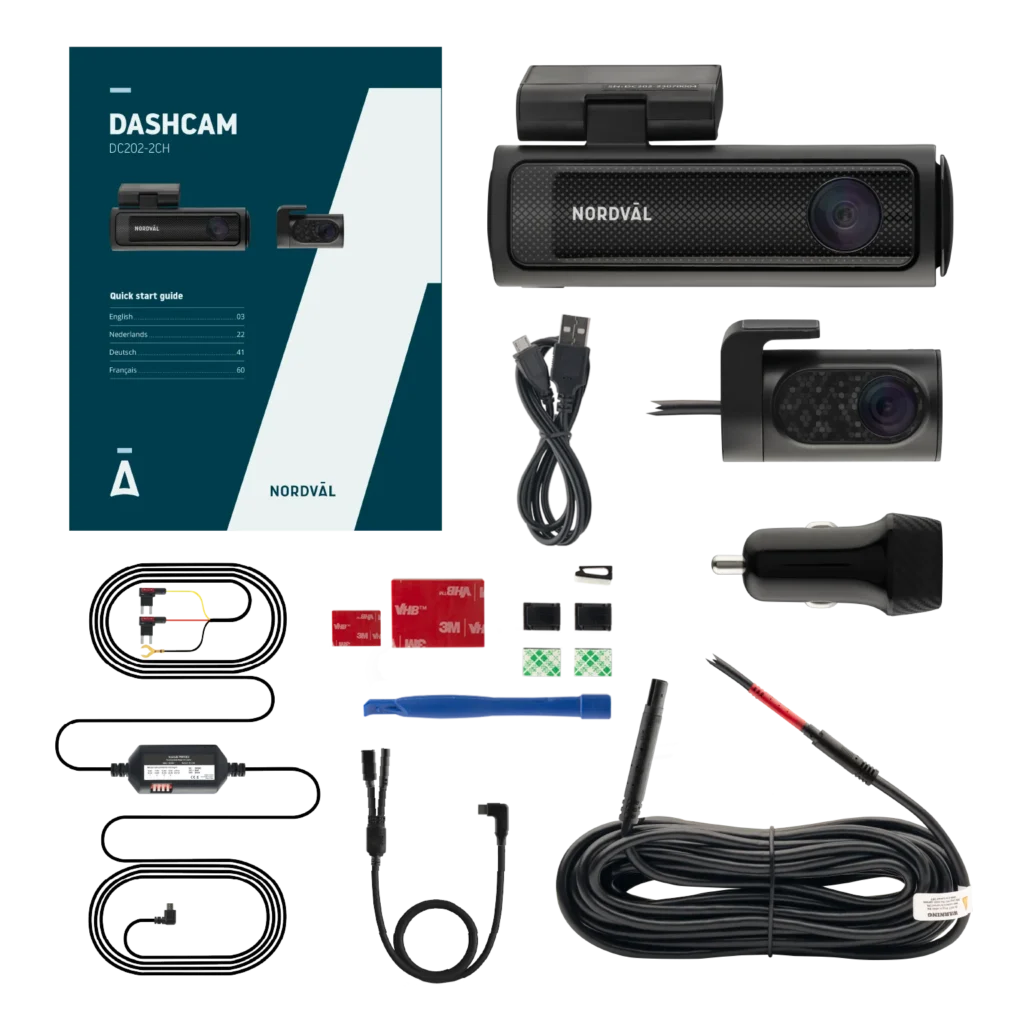
Nordväl DC202-2CH front and rear camera
PMPC03 Parking Mode USB-C Power Kit
Micro SD card
USB-C power cable (3,5m) + USB car charger
AV-cable behind camera (6m)
Electrostatic film
5x Cable clips + cable removal tool
Extra tapes
User manual in NL
—
Wat zit er in de doos?
Nordväl DC202-2CH front and rear camera
PMPC03 Parking Mode USB-C Power Kit
Micro SD card
USB-C power cable (3,5m) + USB car charger
AV-cable behind camera (6m)
Electrostatic film
5x Cable clips + cable removal tool
Extra tapes
User manual in NL
| Product name | Nordväl DC202-2CH |
| Color / Size / Weight | Front camera: black / 11,3 x 3,5 x 3,4cm / 157g Rear camera: black / 5,4 x 2,9 x 2,7cm / 24g |
| SD card | Micro SD, class 10 or higher, maximum 256GB |
| Recording Modes | Normal, Time Lapse*, Event Recording*, Motion Detection* *These are parking mode features that require the included Nordväl USB-C Power Kit to be use. |
| Video resolution | Front & Rear 4K 3840×2160 @ 30FPS + Full HD 1920×1080 @ 30FPS 4K 3840×2160 @ 30FPS + 2K 2560×2160 @ 25FPS 2K 2560×1440 @ 30FPS + Full HD 1920×1080 @ 30FPS Full HD 1920×1080 @ 30FPS + Full HD 1920×1080 @ 30FPS Front only 5K 5120×2160 @ 25FPS 4K 3840×2160 @ 30FPS 2K 2560×1440 @ 30FPS Full HD 1920×1080 @30FPS |
| Maximum quality | 4K Ultra HD |
| Resolution lens | 8.4 Megapixels |
| CPU | NTK98529 |
| Image sensor noame | IMX415 Sony Starvis |
| Type Image sensor | 1/2,8-inch |
| Viewing angle | Front camera: 150º wide-angle lens Rear camera: 135º wide-angle lens |
| Video codec | H.264 |
| Video file format | MP4 |
| Photo file format | JPG |
| GPS | Built-in, playback in app or PC with GPS video player |
| WiFi | Built-in, 5GHz |
| Bluetooth | Built-in, BLE 4.2 |
| Microphone/speaker | Yes /yes (voice guidance in English) |
| Usage | 5V 2,5A |
| USB-C port | Built-in |
| Time and date setting | Yes |
| Loop recording | Yes |
| Input | 12V-24V cigarette lighter plug / Power Kit USB-C |
| Battery | Built-in supercondensator |
| Operational temperature | -20ºC to 70ºC |
| USB-C cable length | 3,5 meters |
| Warranty | 2 years |
| Memory | Image quality | Recording time |
|---|---|---|
| 128GB | Highest (Extreme) | 3 uur 40 minutes |
| Highest | 4 uur 20 minutes | |
| High | 4 hours 50 minutes | |
| Normal | 6 uur 10 minutes | |
| 256GB | Highest(Extreme) | 7 uur 20 minutes |
| Highest | 8 uur 40 minutes | |
| High | 9 uur 40 minutes | |
| Normal | 12 uur 20 minutes |
Update the latest firmware on your dashcam
Click here to download the latest firmware update for the DC202-2CH. This latest firmware update adds an extra parking mode option to the app. This feature allows the dashcam to continue recording in parking mode without the need for an additional PMP hardwire cable.
How do I install the latest firmware?
1. Download the firmware by clicking the button above.
2. Place this file on an empty SD card.
3. Insert the SD card into your DC202-2CH.
4. The dashcam will automatically update and restart.
How does it work?
A new “Timelapse parking mode” feature has now been added to the app. Once you enable this feature, the dashcam will automatically switch to parking mode when you stop the vehicle for 3 minutes or longer.
After the dashcam starts moving again when driving away from a parking position, it will automatically continue recording in continuous mode.
The dashcam will still record ‘event’ footage as soon as the G-sensor is activated by vibration or impact.
The dashcam does not record or sometimes stops recording.
Check the power supply and/or format the SD card in the camera or a computer.
How do I format the SD card and reset the camera?
To format the SD card, open the app and connect the dashcam (if
necessary). Click on “DC202.” First, stop recording and then click on “settings” in the
upper right corner. Next, click on “Format SD card” to format the SD card.
To reset the camera, press and hold the function button for 10 seconds to reset the dashcam to its default settings.
My SD card is always full.
As soon as the dash cam’s G-sensor is activated by sudden movements and/or a collision, the recorded footage is securely stored (it is not overwritten by the loop recording). The G-sensor may be set too sensitive, and all this footage is being securely stored, causing the space on your SD card to gradually decrease. To prevent this, you can adjust the G-sensor sensitivity in the app’s settings.
I cannot find the dashcam in my WiFi settings.
When your dashcam is connected to your car, start the engine. The dashcam will now
also turn on. Make sure you have WiFi, GPS, and Bluetooth enabled on your phone.
The WiFi connection disconnects automatically.
When connected to the dashcam via WiFi, it will automatically turn off after a few minutes
(if there is no app activity).
I have horizontal stripes in the recording.
Open the app and go to “settings” in the top right corner and adjust the frequency based on the power supply (60Hz or 50Hz). Note: If you have a 60Hz power supply, you can select 60Hz. If you have a 50Hz power supply, you can select 50Hz.
My dashcam does not record in parking mode.
Check that parking mode is set correctly, or have an authorized installer check the physical installation.
Check that parking mode is set correctly, or have an authorized installer check the physical installation.
How do I change my WiFi password?
Open the app and go to “Settings” in the top right corner. Select “WiFi” from the menu.
Here you can view and/or change the WiFi settings.
I forgot my Wi-Fi password.
If you have forgotten your WiFi password, you can format the dashcam and reset it
to factory settings (see page 25). The password will then be reset to
the default password: “12345678”.
Important: Save important recordings before formatting the SD card.
My footage is blurry.
Remove the lens protective film and clean the lens with (preferably) a lens cloth.
Also make sure the windshield is clean and free of grease and dirt.
My recordings have no sound.
Open the app and go to “Settings” in the top right corner and make sure the
“Sound Recording” setting is turned on, or use the function button on the dashcam by pressing it once.
Please note that time-lapse videos recorded in
parking mode do not contain audio.
My camera turns on and off automatically.
Ensure that the output current can reach 5V/2.5A and use the supplied
car charger.
My camera is getting hot.
Because the camera continuously records at high speed, the dashcam may become hot during use.
The camera has overheating protection up to 70° Celsius.
Video files cannot be played on my computer.
The dashcam video files are in MP4 format and may not be
compatible with your computer if you do not have the appropriate playback software installed. Ensure
that you have the correct codecs and software installed.
My dashcam keeps saying “Memory card error.”
Using unqualified SD cards or third-party cards may affect the
performance of the dashcam and, in some cases, cause the dashcam to
randomly restart during recording. Use the official SD card
and/or format it in the app.
—
Manuals
—
Manual EN

—
Handleiding NL
—
Handbuch DE
—
Manuel FR
—
Apps
—
iOS App

—
Android App

—
Software
—
Firmware
How do I install the firmware?
- Click on the button above and select the appropriate firmware (standard / PMPC03 or for the BP125 Battery Pack).
- Place this file on an empty SD card.
- Turn on your dashcam without an SD card inserted.
- Then plug in the SD card containing the firmware file.
- The dashcam will install the firmware and restart.